My Organizer:
Take control of your Moodle dashboard

Stop wasting time searching through cluttered course lists. My Organizer transforms Moodle navigation into a simplified, personal workspace, without having to use your institution’s platform.

Why Moodle users need My Organizer ?

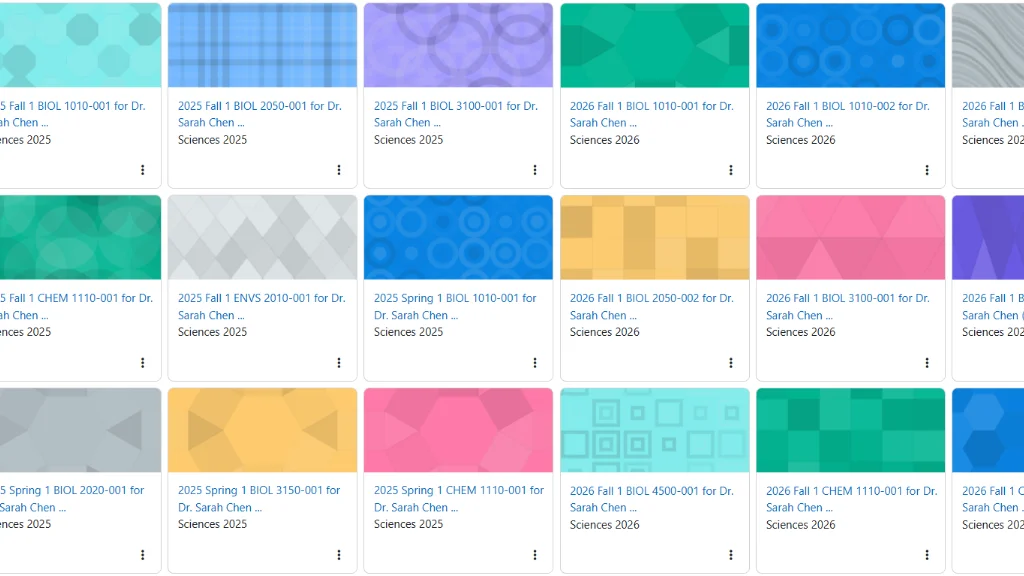
If you use Moodle, you know this frustration: dozens of courses (current and archived, personal and institutional) are mixed together in an endless, unsorted list. Finding the right course requires navigating through long lists and numerous menus. Adding personal notes, scheduling reminders, or efficiently managing multiple sites becomes impossible.

My Organizer solves these problems with an easy-to-use Chrome extension.

Features: your Moodle, organized your way

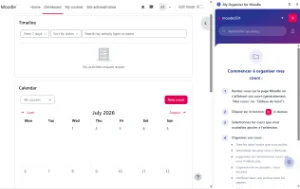
A screenshot showing the One button add courses feature.

One-Click course import

My Organizer automatically detects Moodle platforms. A contextual action button lets you import or synchronize courses found on the “My Courses” or “Dashboard” page. Your personal organization is preserved even when Moodle updates its data.

How it works:

  1. Visit your Moodle page wich contains links to your courses
  2. Click the My Organizer action button
  3. Import courses in one click
  4. Your organization structure is created instantly
  5. Organize it

Hierarchical organization with drag-and-drop

  • Create nested folders to classify courses by semester, department, group, priority, or any system that works for you.
  • Drag and drop courses and folders to reorganize display order.
  • Collapse and expand folders to focus on what matters now.
  • Unlimited folder depth. Organize exactly as you need

Smart search and filtering

Stop scrolling through endless lists. My Organizer includes a powerful built-in filtering system right in your side panel:

  • Instant Text Search: Type a few letters to instantly find any course by its original or customized name.
  • Tag Filtering: Isolate courses based on your current priorities (e.g., show only “To Do” or “Urgent”).
  • Context/Site Filtering: When using multiple Moodle platforms, easily filter your view to show only the courses to your current institution.


Result: Find any specific course among dozens in less than 3 seconds.

Visual customization

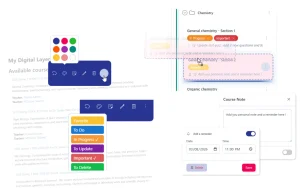
A screenshot showing the color editing feature.

Colors

Assign background colors to courses and folders. Create visual hierarchies that help you identify content at a glance.

A screenshot showing the rename feature.

Renaming

Modify course display names, often too long or cryptic, for better readability. Your original Moodle course remains unchanged. Example: Transform "ECO-2025-SEM2-SEC-B-GR3" into "Economics Group B"

A screenshot showing the tag feature.

Tags system

Predefined tags ready to use immediately: To Do, Important, To Update. Custom tags you create freely with your own colors and labels. Tag statistics show usage across your course library. Power user tip: Combine tags with folders. Tag courses "To Do" across multiple folders, then filter to see all pending work in one view.

Integrated productivity

A screenshot showing the course note feature.

Private notes

Attach text notes to any course. Track progress, save important information, or keep reminders about course-specific details. Example: "Uptade section 3 page", "Add 3 new questions in the final quiz"

A screenshot showing the reminder feature.

Reminders and notifications

Schedule alerts linked to specific courses using Chrome's native notification system. Notifications work even if your Moodle tab is closed. Example: Set a reminder for "Submit final grades to Registrar" two days before the deadline. Chrome delivers the notification at the exact time, and clicking opens the specific Moodle course directly.

Multi-language support

Support for English and French. Interface adapts to your browser language automatically. Coming soon: Spanish, Portuguese, German, Italian, and Asian languages.