
How to clean up a cluttered Moodle course list: A guide for teachers

A Moodle course list can become crowded surprisingly fast. For many teachers, it includes not only the courses they actively teach, but also shells from previous academic years, automatically assigned staff spaces, compliance training, and faculty information hubs.
That accumulation is not a sign of poor organization. It is often the normal result of institutional enrolments, course archiving policies, and the need to keep past teaching spaces accessible. Yet when active courses are buried among administrative clutter, finding the right space for a resource, an announcement, or a grading task takes more attention than it should.
This guide explains how to reduce clutter in your Moodle course view using the available built-in options, then how to keep your current teaching spaces easier to reach over time.
Why teacher dashboards accumulate overwhelming clutter
A crowded Moodle course list is often the result of normal institutional processes, not a lack of personal organization. Each academic year can add new course spaces, while older ones may remain available for reference, grade records, content reuse, or departmental retention requirements.
The accumulation of past academic years and archived course shells
Past courses do not always disappear when a term ends. A teacher may need to revisit a previous syllabus, copy an activity, check feedback, or retrieve a resource. Over time, those useful archives can sit alongside the courses that need attention today.
The result is a flat list where a current class competes visually with courses from several previous terms. Before preparing a lesson or posting an announcement, the teacher must first scan through spaces that are no longer part of the current workload.
Sitewide auto-enrolments: mandatory compliance training and faculty hubs
Institutions can also enrol staff automatically through centrally managed methods, including cohort-based enrolment or synchronisation with external systems. Moodle’s enrolment framework supports automatic methods and cohort enrolment, so these spaces can be part of an institution’s normal access setup.
A teacher may therefore see mandatory staff training, faculty hubs, policy updates, or departmental spaces beside active teaching courses. These areas can be important, but they rarely need to occupy the same attention level as the courses being taught this week.
Cognitive friction: why administrative noise slows preparation
Every extra course card or row creates a small recognition task: “Is this the right cohort? Is this current? Do I still need it?” That friction is especially noticeable when several sections have similar names or when a teacher moves quickly between preparation, teaching, and grading.
Cleaning up the course view is not about removing institutional information. It is about making the active teaching spaces easier to recognize, so the next action starts with the right course rather than a search through administrative clutter.
Navigating Moodle’s course views: Dashboard vs My Courses tab
Understanding where courses appear is the first step toward reducing visual noise. Depending on your institution’s configuration, course spaces are primarily accessed through two central areas: the Dashboard and the dedicated My courses tab in the main navigation.
How modern Moodle navigation separates personal dashboards from course overviews
In standard navigation, the personal dashboard serves as a central hub for activity timelines, recent items, and deadline updates. In contrast, the dedicated course overview area provides an exhaustive catalog of every space associated with your user account.
When institutional enrolments and previous cohorts accumulate, viewing all spaces in a single unorganized feed creates unnecessary scrolling. Distinguishing between your daily activity overview and your comprehensive course listing helps identify which display mode best supports your preparation routine.
Display modes compared: Card, List, and Summary views
The standard course overview interface provides three distinct display modes to present your teaching spaces:
- Card view displays courses as visual tiles with thumbnail images, course full names, and progress indicators, which is visually engaging but consumes substantial vertical screen space.
- List view presents spaces in a compact, single-column format, allowing educators managing numerous cohorts to scan course titles rapidly without image overhead.
- Summary view combines the course title and thumbnail with the introductory description text, providing additional context at the cost of a longer page length.
Selecting a more compact presentation format immediately mitigates screen crowding, establishing a clean baseline before applying specific filters.
Note: The exact layout of your dashboard, the default landing page upon login, and the availability of the "My courses" navigation item depend directly on your institution's site administration policies and theme configuration.
Step-by-step: Cleaning your course view with native Moodle tools
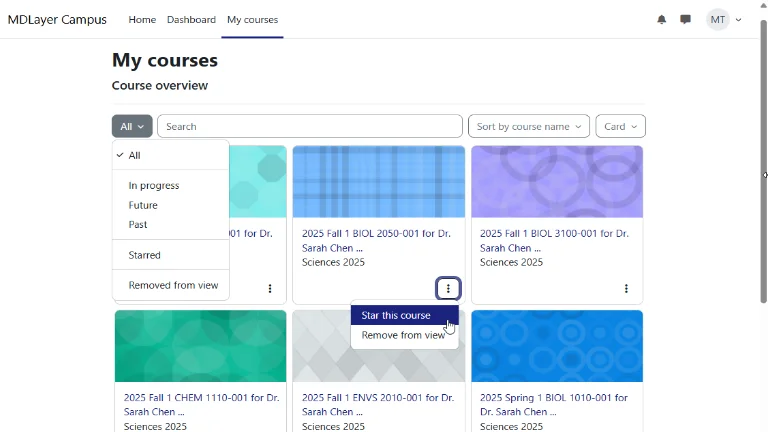
Once your preferred layout is set, you can use the built-in sorting and filtering controls in the Course overview block to hide irrelevant spaces and bring your immediate priorities to the front.
Filtering by course status (In Progress, Future, Past)
The primary dropdown filter allows you to categorize courses based on their official start and end dates configured in the course settings:
- In progress isolates courses whose start date has passed and whose end date has not yet arrived (or remains open-ended), representing your active teaching term.
- Past groups completed courses and archived cohorts whose end dates have elapsed, keeping them accessible for grade reviews or content copying without cluttering your daily view.
- Future holds upcoming course shells assigned for future academic terms that have not yet officially begun.
Switching your default view to “In progress” instantly clears dozens of past shells from your primary screen (provided that official course end dates have been configured in the course settings).
Using 'Star this course' to build an active teaching shortlist
For educators teaching multiple groups concurrently alongside administrative duties, date-based filters may still display too many items. The starring feature creates a manual, persistent shortlist of your top priorities.
Click the three-dot action menu (…) on any course card or row and select Star this course. Then, switch the main filter dropdown to Starred. This isolates only your core teaching assignments into a focused workspace, bypassing institutional noise entirely.
The "Remove from view" option and how to restore hidden spaces
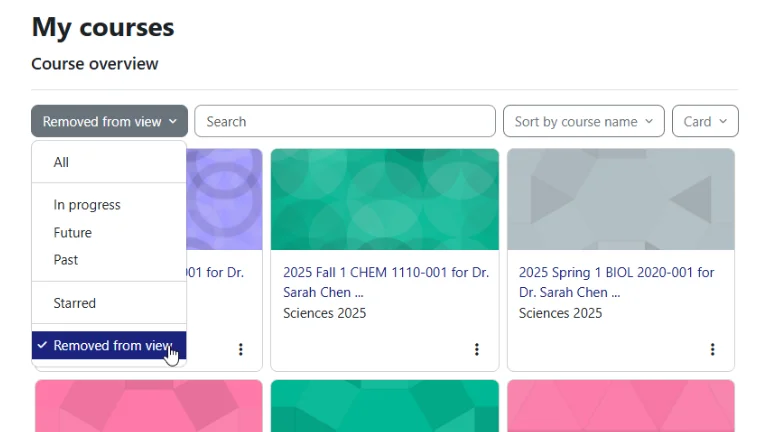
When institutional policy leaves permanent non-teaching courses on your account, such as general faculty hubs or completed mandatory compliance modules, you can manually hide them from standard lists.
Click the three-dot action menu on the unwanted course and select Remove from view. The item will disappear from standard filters (including “All” and “In progress”). To review or restore a hidden course, change your filter dropdown to Removed from view, click the three-dot menu, and choose Restore to view.
Where native Moodle filters reach their practical limits
While native filters provide an immediate visual cleanup, educators managing dense schedules across multiple terms often encounter structural limitations built into standard LMS configurations.
Platform-level constraints and multi-site configuration silos
Moodle stores view preferences (such as your selected filter or display format) directly within your user profile on the server rather than in local temporary cookies. While this keeps your selection intact when switching devices, it introduces significant friction if you teach across more than one institution.
Instructors who work across multiple departments, partner universities, or corporate training portals cannot synchronize their organization. Each Moodle instance remains an isolated silo where views must be configured separately. Furthermore, central site administrators can periodically update global dashboard layouts, disable specific filter tabs, or reset default blocks during annual platform maintenance, altering your carefully adjusted workspace.
Why native filtering cannot permanently isolate institutional overhead courses
Built-in filters categorize courses strictly using platform metadata, such as official start and end dates or enrolment methods, rather than your actual instructional priorities.
Because non-teaching administrative spaces (such as faculty information portals, departmental boards, and ongoing compliance modules) rarely have configured end dates, they automatically pass through the “In progress” filter alongside active classes. Even if you manually hide them using “Remove from view”, each new academic term brings fresh automated cohort syncs and mandatory staff spaces that reappear directly in your main feed. Standard LMS filters cannot create a permanent, firewalled perimeter that protects your daily teaching focus from continuous institutional overhead.
Next steps: Solving cryptic course codes and semester workflows

Hiding completed cohorts and faculty hubs clears immediate visual noise, but it leaves another daily hazard untouched: cryptic administrative codes.
When automated student information systems assign identical-looking labels across multiple tutorial groups, discovering how to rename Moodle courses without admin rights is essential to prevent costly mix-ups when uploading assessments or feedback.
Furthermore, cleaning your course view is only the first step in building a sustainable teaching environment.
To maintain clarity as new terms begin, establishing a repeatable Moodle course management workflow helps educators navigate preparation, live delivery, and term-end archiving methodically.
Taking full control: A personal browser-level organization layer
Because Moodle manages course listings at the server level, platform filters alone cannot provide individual teachers with complete workspace autonomy. Institutional enrolments and administrative naming rules are designed for system-wide governance, not for individual teaching comfort.
Bypassing server clutter with client-side workspace autonomy
To bypass platform clutter without requesting administrative permissions or modifying the institution’s database, educators increasingly rely on client-side browser tools.
Installing a dedicated companion like My Organizer for Moodle adds a sovereign personal layer directly inside your browser. With a single click from the side panel, you can import your active teaching spaces, filter out unwanted institutional noise, and keep your core courses accessible across every browser tab, ensuring your daily preparation stays focused, private, and clutter-free.
Ready to eliminate Moodle dashboard clutter?
You do not have to let old cohorts and administrative training spaces slow down your daily teaching. With a private side panel running locally in your browser, you can isolate your active classes in seconds.