
How to organize Moodle courses for a clearer teaching workflow

A well-structured Moodle workspace is the foundation of a manageable academic term. Yet for most educators, course organization is treated as an afterthought: addressed only when dashboard clutter becomes overwhelming or when cryptic course codes cause friction during active teaching.
Managing multiple cohorts across successive semesters requires more than occasional cleanup tricks. Between updating syllabi before term start, delivering weekly materials, grading submissions, and archiving completed classes, instructors need a predictable system that supports the entire instructional lifecycle. Without a clear framework, navigating between active and inactive spaces adds continuous cognitive overhead to daily preparation.
This guide outlines a practical four-step method to structure your Moodle courses across the semester, showing how to establish efficient routines with built-in platform capabilities and create a streamlined, stress-free teaching workflow.
Why Moodle course management requires a proactive system
Most educators approach Moodle reactively, adjusting their workspace only when the volume of links and notifications becomes unmanageable. However, treating course organization as an occasional cleanup task fails to address the underlying pace of modern digital teaching. Without a structured routine, the continuous influx of student submissions, institutional spaces, and curriculum iterations gradually compromises daily productivity.
The course lifecycle: syllabus updates, live delivery, grading, and archiving
Every Moodle course moves through four distinct operational phases across an academic term. Before classes begin, instructors face a syllabus revision period that involves updating assignment cutoffs, refreshing reading lists, and testing interactive resources. Once the term starts, the focus shifts to active delivery and communication, followed by an intensive grading window with rigid submission deadlines, and finally, formal archiving.
When all these phases exist simultaneously inside a single flat list, teaching priorities blur. An educator preparing next week’s lecture must scan past completed cohorts from last spring and empty shells scheduled for next semester. Distinguishing these stages through a defined management process ensures that your working interface always matches your immediate instructional obligations.
The friction of unmanaged platform growth over successive academic terms
Institutional learning management systems are designed for long-term data retention rather than everyday ergonomic comfort. Over multiple semesters, automated platform synchronizations and mandatory institutional memberships accumulate alongside your primary teaching spaces.
This unmanaged accumulation introduces significant context switching fatigue into every working session. Looking for the correct grading inbox or lecture slide deck among dozens of active and dormant spaces drains mental energy before actual teaching begins. Establishing a proactive management framework eliminates this daily search friction, keeping your attention focused entirely on pedagogical delivery and student support.
The 4-Step semester organization framework for teachers
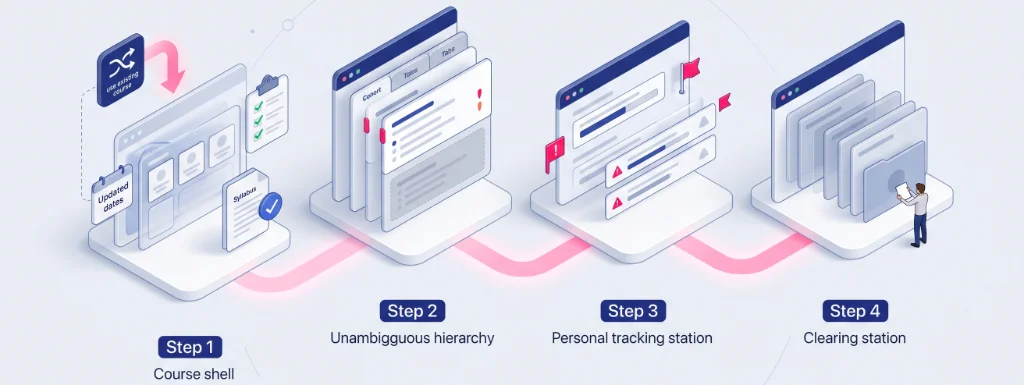
Maintaining an efficient digital workspace does not require daily reorganisation; it relies on structured checkpoints aligned with the academic calendar. By breaking course management into four distinct phases, educators can transition smoothly from pre-term preparation to live teaching, grading, and term closeout.
Step 1: Pre-term setup and course content rollover
Preparation begins weeks before teaching starts, when institutions generate new, empty course shells for the upcoming term. Rather than rebuilding materials from scratch, educators rely on Moodle’s native Course reuse tools to import activities, resources, and question banks from previous semesters. Once the content is transferred, this phase focuses on updating assignment deadlines, verifying syllabus documents, and testing interactive resources before student enrolment opens.
Step 2: Establish unambiguous visual priorities for active cohorts
When teaching begins, an instructor’s daily need is immediate, error-free access to active classrooms. Rather than navigating through cryptic administrative identifiers or departmental hubs, educators benefit from isolating current classes into a clear working hierarchy. Keeping current groups distinct from dormant spaces ensures that your active teaching space remains immediately accessible throughout weekly delivery.
Step 3: Track grading progress and administrative grade deadlines
During midterm and final assessment periods, the operational challenge shifts from content delivery to grading workflows. While Moodle alerts students to assignment due dates, it does not track an instructor’s internal progress across dozens of submissions or provide personal reminders for institutional grade submission deadlines. Adopting structured personal markers for pending reviews maintains steady teaching productivity during peak evaluation weeks.
Step 4: Semester closeout and workspace reset
Once final grades are submitted to the administration, completed courses must be systematically phased out of daily view. Because central retention policies keep old spaces accessible on teacher accounts, ending the term requires a deliberate reset: clearing finished classes from your primary workspace and securing local backups of key resources. This routine prevents clutter from spilling over into the semester setup of the following academic year.
Organizing courses using native Moodle features
Standard Moodle installations provide several built-in mechanisms that educators can leverage to structure their daily work. While these features are primarily designed for system-wide governance or general site navigation, understanding how they operate allows teachers to extract the maximum organizational value from standard platform settings.
Course Categories
Hierarchical trees partition campus-wide courses by faculty, department, or degree. Designed for high-level administration rather than tailored instructor routines.
Dashboard & Bookmarks
Local shortcuts using Starred Course filters or browser folders. Offers quick links to current shells without altering native system configurations.
Leveraging course categories (and why they depend on platform admins)
At the system level, Moodle organizes spaces through hierarchical structures known as course categories, which group courses by faculty, academic department, degree program, or term. When browsing through the site hierarchy, these categories help keep thousands of university spaces logically partitioned across the entire institution.
However, category creation and maintenance are strictly managed by platform administrators. Individual instructors cannot create personal subcategories or adjust departmental trees to match their own teaching routines. Unless an institution grants course-creator privileges or configures bespoke departmental folders, educators must navigate within rigid administrative hierarchies that rarely reflect an individual instructor’s day-to-day priorities.
Structuring courses through custom dashboard blocks and browser bookmarks
Within their own interface, teachers can customize certain display elements to streamline navigation. On institutions where personal dashboard editing is permitted, instructors can position the Course overview block prominently or utilize the Starred courses filter to pin priority classes to the top of their page.
To complement standard LMS views, many educators resort to creating organized bookmark folders directly in their web browser (e.g., Fall 2026 > Group A). While this workaround provides one-click access to specific URLs, browser bookmarks remain static shortcuts that do not reflect live course activity, require tedious manual updates at every semester setup, and quickly break when course shells are regenerated for a new academic year.
Deepening your system: dedicated folders and task tracking
Establishing a predictable semester workflow provides the strategic framework for a calm academic year, but day-to-day execution requires specialized tools to handle specific organizational hurdles. As your teaching roster expands across multiple cohorts and institutions, two distinct operational needs emerge: physical visual structuring and personal deadline management.
Applying a structured workflow requires visual categorization that standard LMS views rarely provide. When teaching several sections of the same curriculum alongside corporate workshops or departmental committees, flat lists create continuous visual friction. To group your active teaching spaces by department, semester, or cohort, learn how to implement custom Moodle course folders for effortless visual structure.
A sound organizational method must also support time-sensitive commitments like syllabus updates, content revisions, and grading deadlines. While the platform’s calendar handles student-facing due dates, it cannot manage an instructor’s private preparation milestones or registrar submission cutoffs. Discover how to configure course-specific Moodle reminders and notes to track your personal teaching deliverables without relying solely on default platform alerts.
The limit of platform tools: why personal workflows need a dedicated workspace
Institutional learning management systems are architected to ensure institutional governance, data compliance, and multi-year record keeping. Because these platforms must serve the collective needs of entire universities or training organizations, they cannot provide individual teachers with a fully personalized, flexible working layer. Relying solely on standard platform views forces instructors into repetitive navigation cycles every single day.
Bridging collective LMS constraints with a sovereign teacher layer
A dedicated browser-level productivity layer bridges this operational gap without requiring administrator permissions or modifications to the school’s server. By decoupling personal organization from the centralized database, educators can structure their workspace according to their actual teaching logic, keeping their core classes, custom labels, and preparation notes immediately accessible.
Installing a lightweight extension like My Organizer for Moodle transforms how you interact with the LMS throughout the academic year. Operating entirely as a private, sovereign layer stored securely in your browser (chrome.storage.local), it allows you to import all your teaching spaces in one click, group courses into drag-and-drop folders, assign intuitive display aliases, and attach private preparation reminders—turning a complex institutional system into an intuitive custom workspace.
Ready to build a cleaner Moodle course workflow?
You do not need server plugins or administrator tickets to create an organized digital workspace. With a private browser-level layer, you can take control of your teaching routine, structure your cohorts, and navigate your semester with total clarity.