
How to organize Moodle courses with folders: A guide for educators
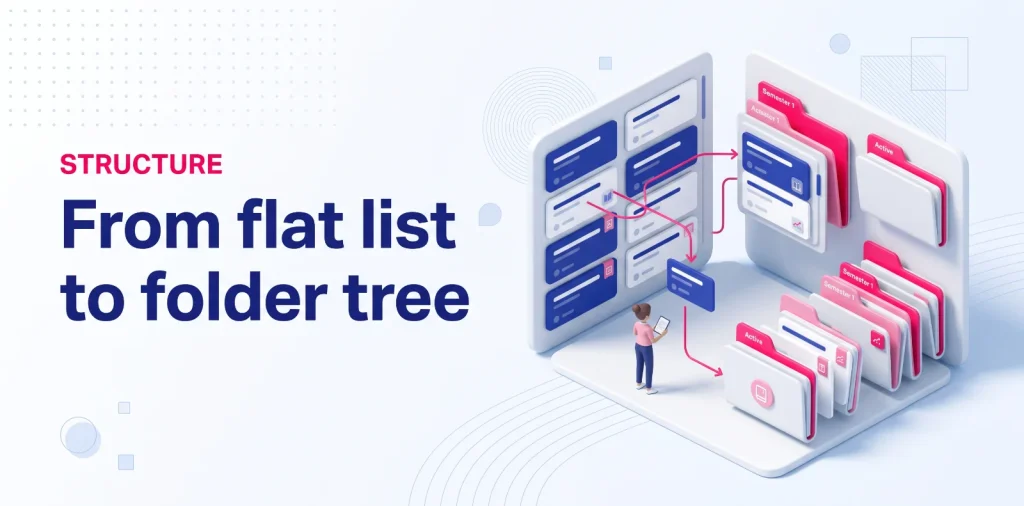
Managing multiple teaching cohorts on Moodle often leads to an unmanageable, flat list of course links. For instructors teaching across several academic terms, departments, or partner institutions, scanning through dozens of unstructured spaces adds recurring friction to daily course delivery.
While Moodle organizes courses globally through administrator-controlled categories, it offers no native mechanism for individual teachers to create personal course folders on their dashboard. As a result, educators must constantly scroll past inactive or parallel sections just to reach their weekly classes.
This guide clarifies how Moodle handles course hierarchies natively, explains why browser bookmark workarounds fall short, and shows how educators can establish intuitive folder structures to organize their teaching spaces with total clarity.
Why a flat course list fails for multi-course educators
Modern educational workloads rarely fit into a simple single-course setup. Instructors frequently balance multiple tutorial groups, cross-departmental modules, and specialized training tracks simultaneously. When all these active environments are dumped into a single linear view, managing daily access quickly becomes cumbersome.
The challenge of managing multiple cohorts, levels, and departments
Educators who teach across different academic years or departments face a fragmented digital landscape. An instructor might lead an introductory undergraduate lecture on Monday, supervise specialized graduate seminars on Wednesday, and facilitate continuing professional education on Friday.
Without spatial separation, these fundamentally different teaching cohorts sit side by side in an undifferentiated catalog. Every time the educator logs in, they must manually distinguish between beginner curricula, advanced workshops, and departmental administrative spaces. This lack of visual hierarchy creates continuous friction, especially when navigating under tight class-to-class schedules.
Why linear lists create unnecessary scrolling and navigation fatigue
Standard LMS overviews present courses in a sequential format where every space occupies the same visual weight. As the semester progresses and historical spaces accumulate, the sheer physical length of the page forces teachers into constant scrolling.
This unstructured display introduces significant navigation fatigue into everyday preparation routines. Locating a specific group requires scanning through dozens of visual cards or table rows, repeatedly reading past unrelated modules. Over time, this repetitive visual parsing wastes valuable minutes and disrupts teaching focus before instruction even begins.
Clearing the confusion: Course folders vs Course categories vs Folder resources
When educators search for ways to organize their courses into folders, they often run into terminology confusion within the LMS. Moodle uses similar terms for very different features, making it essential to distinguish between student-facing content, administrative site architecture, and personal teacher navigation.
Course File Folder
A content item placed inside a single course page to share downloadable files, readings, or slides with enrolled students.
Course Categories
The overarching institutional tree used to catalog courses by faculty, department, or academic term across the entire site.
Personal Course Folders
Private folders directly on your teacher dashboard to group, collapse, and declutter active and past classes.
The Moodle 'Folder' resource: sharing files with students inside a course
The most common point of confusion is the built-in Folder resource (mod_folder). In native Moodle terminology, a folder is an instructional activity module used exclusively inside a single course space to organize downloadable documents, lecture slides, or reading packets for enrolled learners.
While this resource is useful for keeping course files tidy for students, it operates entirely within the boundaries of a single course shell. It cannot be used to organize, group, or structure the courses themselves on your dashboard or main navigation menu.
Moodle Course Categories: administrative structures managed at the server level
At the institutional level, Moodle organizes spaces through global course categories. These categories create a broad institutional tree, grouping courses by faculty, academic department, degree program, or administrative division across the entire platform.
However, course categories are server-wide structural elements configured and governed exclusively by site administrators. Individual teachers cannot create their own personal subcategories, reorder the institutional tree, or customize these groupings to match their private weekly routine.
Personal course folders: what teachers actually need for their daily navigation
What educators actually need is a flexible, client-facing layer: true nested folders designed specifically for course management. This means having the ability to group related course spaces into custom folders, collapse inactive groups, and arrange classes by semester or target audience.
Because Moodle’s architecture is built around central administration rather than personal desktop ergonomics, this teacher-centric folder capability is completely absent from the standard platform interface.
Can you create course folders natively in Moodle?
Given the clear need for spatial organization, many educators wonder whether standard LMS settings offer a built-in way to group course spaces into folders. Examining the platform’s core architecture reveals why native options remain strictly limited to flat filtering rather than true hierarchical grouping.
Why Moodle does not allow user-defined course grouping on the dashboard
Standard Moodle dashboards are architected around flat query blocks such as the Course overview block. While these blocks allow sorting by last accessed date or filtering by official enrollment status, they do not include any native functionality for grouping courses into user-created directories.
The platform’s database model links a teacher directly to individual course enrolments without providing an intermediate, user-editable folder layer. Because the user interface is rendered centrally by the server based on global permissions, instructors cannot drag course cards together, create bespoke sub-groups, or build a personal folder hierarchy on the platform itself.
Workarounds using browser bookmark folders (and why they break easily)
To bypass this platform limitation, many resourceful instructors turn to browser bookmarks as a makeshift filing system. By creating folder trees in their browser’s bookmark bar (e.g., Fall 2026 > Economics 101 > Group B), educators create quick shortcuts to specific course URLs.
While this workaround provides basic link grouping, it introduces recurring technical friction into everyday work:
- Bookmarks are static links that offer no live course context, such as unread notifications or direct side-by-side access while browsing.
- They require manual maintenance at every semester rollover, forcing teachers to recreate URLs by hand when new course shells are generated.
- Bookmarks break easily when an institution updates course IDs, migrates server domains, or refreshes internal LMS routing.
Practical architectures: How to group your courses logically
Creating a personal folder hierarchy requires choosing an organizational model that reflects how you actually teach and prepare materials. Rather than replicating complex administrative classifications, instructors benefit from simple structures that minimize decision-making during the semester.
Organizing by academic term (Current Semester / Archives)
The most intuitive structure for university and school educators separates active teaching from historical reference. Placing ongoing modules in a dedicated top-level folder keeps current responsibilities front and center, while past terms remain accessible in a separate archive folder.
A standard academic structure often follows this hierarchy:
-
Active Semester (e.g., Fall 2026)
- Undergraduate Modules
- Graduate Seminars
-
Academic Archives
- 2025–2026 Academic Year
- 2024–2025 Academic Year
- Departmental & Administrative Hubs
This chronological separation ensures that completed shells never interfere with weekly lesson delivery, while remaining immediately available when you need to retrieve a previous assignment or syllabus.
Organizing by curriculum, client, or institution
Educators who work across multiple programs, institutions, or corporate clients require a classification based on organizational context rather than strict calendar terms. In this scenario, building departmental grouping helps isolate different client requirements and teaching levels.
A multi-context structure typically looks like:
-
University A (Department of Science)
- First-Year Physics (Group 1 / Group 2)
- Applied Laboratory Sessions
-
Partner Institute (Professional Certification)
- Corporate Workshop Track
- Executive Training Cohorts
- General Faculty & Committee Spaces
Grouping courses by institution or audience allows instructors to switch contexts cleanly, eliminating visual cross-contamination between entirely separate teaching contracts.
Complementing folders: workflows and time management

Structuring your courses into visual folders creates a clear spatial foundation for your digital workspace. However, long-term teaching efficiency requires connecting this visual order with broader semester routines and active deadline management.
Creating a clean folder structure is the spatial foundation of an efficient workspace. To ensure this structure supports your day-to-day teaching responsibilities, integrate it into a broader structured Moodle course workflow designed for academic term transitions.
Once your courses are categorized into dedicated folders, managing the teaching tasks inside them becomes much simpler. Learn how pairing folder organization with Moodle course deadline tracking helps you stay ahead of content updates and heavy grading cycles.
Bringing drag-and-drop folders to Moodle via browser extensions
Because Moodle was designed as a learning management system rather than an individual desktop environment, standard platform settings cannot provide personal course trees. Bridging this gap requires moving personal folder management from the centralized server directly into the instructor’s browser.
Client-side side panels vs rigid LMS hierarchies
A client-side extension adds a dedicated personal layer without requiring server modifications, administrator tickets, or changes to student-facing views. By keeping course management local to the user, educators gain complete autonomy over their daily workspace layout.
Installing a dedicated companion like My Organizer for Moodle gives you a persistent side panel tree view with intuitive drag-and-drop course folders. You can create nested folder hierarchies, reorder classes instantly, and collapse inactive terms, all stored securely in your browser using local storage (chrome.storage.local) without altering institutional records.
Ready to structure your Moodle courses into folders?
Stop scrolling through cluttered, flat course lists every day. Take control of your teaching workspace with intuitive drag-and-drop folders directly inside your browser side panel.